Python SDK Guide
Official website: www.mixedsignallab.com
Documentation: Quick Start · Communication Protocol · Product Guides · Examples
This SDK reference applies to: supported SmartUSBHub models. The product-manual links below currently cover the 4CH and 7CH USB 2.0 products.
Last updated on: July 24, 2026
Introduction
SmartUSBHub models differ in channel count, power-input requirements, measurement support, and model-specific features. Select the correct product guide before connecting hardware or running a control script.
If you prefer direct software control, use the software suite distributed with your SmartUSBHub release package.
This is a Python library for controlling SmartUSBHub devices from scripts, test systems, and automation workflows.
Published product manuals
Product |
Model / order code |
Channels |
USB |
User guide |
Datasheet |
|---|---|---|---|---|---|
SmartUSBHub Pro 4CH USB2.0 |
|
4 |
USB 2.0 High-Speed |
||
SmartUSBHub Pro 7CH USB2.0 |
|
7 |
USB 2.0 High-Speed |
For another supported order code, use the model-specific documentation supplied with that device.
General software documentation
Overview
SmartUSBHub is a family of software-programmable USB hubs that offer per-channel power control, data-line control on supported models, and voltage/current sensing on supported models. It is designed for development, automated testing, and device management applications.
Programmable USB Port Switching
Individually enable or disable power and data lines on any downstream port
Simulate manual hot-plug behavior with physical controls or software commands
Voltage and Current Monitoring
Models with voltage/current sensing support real-time per-channel measurement for power analysis and device diagnostics
Software-Controllable & Multi-Platform Compatible
USB CDC serial command interface with a Python library and desktop applications
Windows 10/11, macOS, and common Linux distributions require no dedicated driver; Windows 7 requires the provided CDC driver
Multiple Operating Modes
Normal Mode: all ports operate independently
Interlock Mode: only one port is active at any time
Each downstream port supports configurable power-on defaults and power-loss state restore
Topology Support for Scalable Deployment
Each hub can be assigned a unique address for large-scale, multi-hub configurations
Typical engineering uses
SmartUSBHub is designed for repeatable USB control in:
hardware development and fault recovery;
automated regression and compatibility testing;
firmware programming and production validation;
remote device management and unattended test fixtures;
voltage/current observation on models that support measurement.
Connection guide
Warning
Identify the exact model and follow its product guide before applying external power. The 4CH AUX POWER input accepts regulated 5 V DC only (5.5 V absolute maximum), while the 7CH DC IN operating range is 9–20 V. Never reuse a power supply merely because its connector fits.
Note
Connect a USB data cable between the device’s DATA upstream port and the USB host. This connection carries traffic for the downstream devices. The operating system detects a generic USB hub.
Connect the included USB-A to USB-C cable between the device’s Command Port and a USB port on the host computer. This port is used for serial communication. Once connected, the device will appear as:
On Windows:
COMxOn Linux:
/dev/ttyACMxOn macOS:
/dev/cu.usbmodemx
Connect both DATA and CMD when the same host must control the hub and communicate with downstream USB devices.
Performance
Measured on HBP_USB2_4CH over USB CDC (driverless virtual COM port, 115200), Python SDK defaults, macOS.
Control latency: a single per-channel control command (set + read-back) round-trips in ~2.5 ms.
Control rate / throughput: ~200 commands/s sustained on a mixed 4-channel power + data-line set/read-back load; ~400 commands/s for a single simple command.
Multi-channel reads: a whole-device voltage/current/status snapshot uses deterministic completion and returns in ~10–13 ms, with no fixed settle delay.
Reliability: 100% success (0 failures) over a sustained 1,000,000-operation stress run.
Quick Start
Choose one setup method.
Method 1: Install via pip
pip install smartusbhub
Method 2: Use this source checkout
cd smartusbhub
python -m venv venv
source ./venv/bin/activate
pip install -r requirements.txt
Library structure:
.
├── README.md                # Documentation
├── docs                     # Product guides and protocol documentation
├── examples                 # Runnable examples
├── requirements.txt         # Dependency list
└── smartusbhub.py           # Core functionality source code
GUI examples require extra packages:
pip install pyqtgraph PyQt5 numpy
Run Examples
The source repository provides usage examples in the examples directory:
device_report.py: read device identity and runtime status.
power_control_example.py: control channel power, including interlock mode.
setting_example.py: read device information and configure default states, address, operate mode and buttons.
cycle_all_channels.py: power-cycle every controllable channel in sequence.
set_default_power_dataline_on.py: configure power-on defaults.
dataline_control_example.py: disconnect or reconnect a channel’s USB 2.0 data lines while keeping power enabled.
power_monitor.py: print voltage/current samples on measurement-capable models.
oscilloscope.py: GUI plot using request/response measurement.
oscilloscope_stream.py: GUI plot using streaming measurement.
user_callback_example.py: register user callbacks.
multi_device_channel_control.py: discover and control multiple hubs.
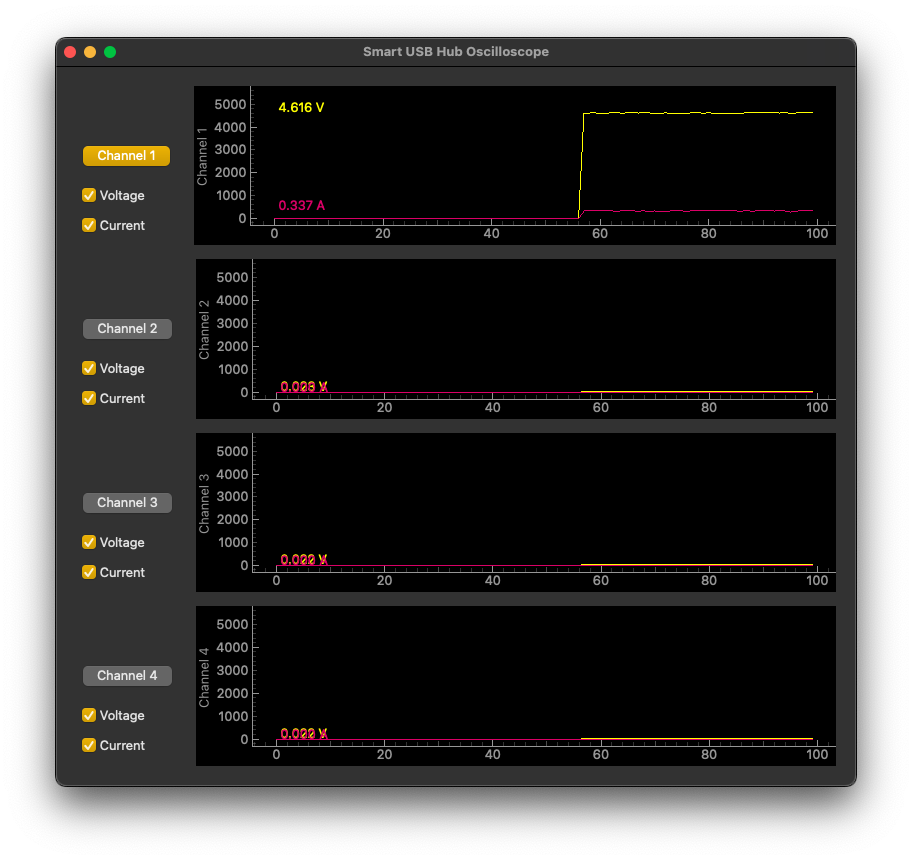
To run a demo from a source checkout:
python examples/power_control_example.py
python examples/oscilloscope.py
Integrating with Your Project
You can integrate this library into your project by importing the smartusbhub module.
This SDK uses Apache-2.0. When integrating or redistributing it, follow Apache-2.0 Section 4 by keeping the license, copyright notices, and the attribution notices from NOTICE in a readable form.
Install the package with pip, or use this source checkout as described above.
Import the library into your project:
from smartusbhub import SmartUSBHub
Initialize a
SmartUSBHubinstance:By automatically scanning and connecting to the device:
hub = SmartUSBHub.scan_and_connect()
By specifying the serial port to connect to the device:
# Example:
hub = SmartUSBHub("/dev/cu.usbmodem132301")
User Interface
Device Connection
scan_and_connect(exclude_ports=None, device_address=None)
Description: Scans matching USB CDC ports and returns the first available SmartUSBHub. Use
exclude_portsto skip known ports.device_addresscan filter by a previously assigned 16-bit address, but addresses default to zero and are not unique until configured.Return Value:
SmartUSBHuborNone: A connected instance, orNoneif no matching device is available.
Example:
hub = SmartUSBHub.scan_and_connect()
scan_available_ports()
Description: Returns the serial-port paths whose USB VID/PID identify a SmartUSBHub.
Return Value:
list[str].
ports = SmartUSBHub.scan_available_ports()
auto_connect(exclude_ports=None, feature_filter=None)
Description: Tries each matching port until one connects. Busy or failing ports are skipped. Set
feature_filtertoadc,usb2_data_switch,usb3_data_switch, orilim_switchto require that capability.Return Value:
SmartUSBHuborNone.
hub = SmartUSBHub.auto_connect(feature_filter="adc")
scan_and_connect_by_address(device_address)
Description: Connects to the first device that reports the requested 16-bit address.
Return Value:
SmartUSBHuborNone.Caution: Device addresses default to zero. Prefer selecting a known serial port unless every connected unit has first been assigned a unique address.
SmartUSBHub(port)
Description: Opens a specific SmartUSBHub serial port.
Parameter:
port(str) is the serial-port path returned byscan_available_ports().
hub = SmartUSBHub("/dev/cu.usbmodem132301")
Device Disconnection
disconnect()
Description: Stops the receive thread, closes the serial port, and releases the process lock. It is safe to call more than once.
Example:
hub.disconnect()
is_connected()
Description: Reports whether the serial port is currently open.
Return Value:
bool.
close()
Description: Alias for
disconnect().Return Value:
None.
register_disconnect_callback(callback)
Description: Registers a zero-argument function that runs after an unexpected device disconnection.
Return Value:
None.
hub.register_disconnect_callback(lambda: print("SmartUSBHub disconnected"))
SmartUSBHub also supports a context manager, which guarantees disconnection on exit:
with SmartUSBHub("/dev/cu.usbmodem132301") as hub:
    hub.set_channel_power(1, state=1)
Channel List
get_channels()
Description: Returns all valid 1-based channel numbers for the connected product.
Return Value:
tuple: Available channels, for example
(1, 2, 3, 4)or(1, 2, 3, 4, 5, 6, 7).
Example:
channels = hub.get_channels()
hub.set_channel_power(*channels, state=1)
Channel Power Control
set_channel_power(*channels, state)
Description: Sets the power state of the specified channel(s).
Parameters:
*channels(int): The channel(s) to control. Available channels can be obtained withhub.get_channels().state (int):
1to turn power on,0to turn power off.
Return Value:
bool: Returns
Trueif the command is successful, otherwiseFalse.
Example:
hub.set_channel_power(1, 2, state=1)
Getting Channel Power Status
get_channel_power_status(*channels)
Description: Queries the power status of the specified channel(s).
Parameters:
*channels(int): The channel(s) to query. Available channels can be obtained withhub.get_channels().
Return Value:
dictorintorNone: If querying multiple channels, returns a dictionary of channel statuses; if querying a single channel, returns that channel’s status; if a timeout occurs, returnsNone.
Example:
status = hub.get_channel_power_status(1, 2)
Channel Power Interlock Control
set_channel_power_interlock(channel)
Description: Selects the only powered channel in interlock mode, or powers every channel off. Turning a channel’s power off also disconnects its data line.
Note: In interlock mode, the regular
set_channel_power()command is ineffective; useset_channel_power_interlock()to select the powered channel. The interlock command controls power. Useset_channel_usb2_dataline()when the selected channel’s USB2 data line also needs to be controlled.Parameters:
channel (int or
None): The channel to set. If None, all channels will be turned off.
Return Value:
bool: Returns True if the command is successful, otherwise False.
Example:
hub.set_channel_power_interlock(1)
Channel USB Data Line Control
set_channel_usb2_dataline(*channels, state)
Description: Sets the USB 2.0 data-line (D+ / D−) connection state for the specified channel(s).
Parameters:
*channels(int): The channel(s) to update. Available channels can be obtained withhub.get_channels().state(int):1to connect D+ / D−,0to disconnect D+ / D−.
Return Value:
bool: Returns
Trueif the command is successful, otherwiseFalse.
Example:
Connect the data lines of channel 1:
hub.set_channel_usb2_dataline(1,state=1)
Getting Channel USB Data Line Status
get_channel_usb2_dataline_status(*channels)
Description: Queries the USB data line switch status of the specified channel(s).
Parameters:
*channels(int): The channel(s) to query. Available channels can be obtained withhub.get_channels().
Return Value:
dictorNone: A dictionary containing each channel’s data line status; if a timeout occurs, returnsNone.
Example:
Get the data line connection status of channels 1 and 2:
status = hub.get_channel_usb2_dataline_status(1, 2)
set_channel_dataline(*channels, state) and get_channel_dataline_status(*channels)
These backward-compatible names call set_channel_usb2_dataline() and
get_channel_usb2_dataline_status(). New code should use the explicit
usb2 method names.
Getting Channel Voltage
get_channel_voltage(channel)
Description: Queries the voltage of a single channel.
Note: This API is only available on models with voltage/current sensing.
Parameters:
channel (int): The channel to query.
Return Value:
intorNone: The voltage value of the channel (in mV); if a timeout occurs, returnsNone.
Example:
Get the voltage of channel 1:
voltage = hub.get_channel_voltage(1)
Getting Channel Current
get_channel_current(channel)
Description: Queries the current of a single channel.
Note: This API is only available on models with voltage/current sensing.
Parameters:
channel (int): The channel to query.
Return Value:
intorNone: The current value of the channel (in mA); if a timeout occurs, returnsNone.
Example:
Get the current of channel 1:
current = hub.get_channel_current(1)
Batch Channel Voltage/Current Measurement
Note: This API is only available on models with voltage/current sensing.
get_channel_measurements(*channels)
Description: Reads voltage/current measurements for one or more channels in a single request. If no channel is specified, all valid channels of the connected product are queried.
Parameters:
*channels(int): Channel numbers to query. Available channels can be obtained withhub.get_channels().
Return Value:
dictorNone: Returns{channel: {"voltage": mV, "current": mA, "fresh": bool, "stale": bool, "valid": bool}}, orNoneon timeout/no valid data.
Example:
measurements = hub.get_channel_measurements(1, 2)
all_measurements = hub.get_channel_measurements(*hub.get_channels())
Streaming Measurement
Note: This API is only available on models that support streaming measurement output.
set_channel_measurement_stream(*channels, enabled=True, wait_ack=True)
Description: Enables or disables streaming measurement output for the specified channels. If no channel is specified, all valid channels of the connected product are used.
Parameters:
*channels(int): Channel numbers to stream.enabled(bool):Trueto enable,Falseto disable.wait_ack(bool): Whether to wait for the device acknowledgement.
Return Value:
bool: ReturnsTrueon success,Falseon timeout.
Example:
hub.set_channel_measurement_stream(*hub.get_channels(), enabled=True)
get_stream_channel_measurements(*channels, timeout=None, wait_new_sample=True)
Description: Waits for the next streaming measurement frame and returns measurements for the specified channels. Streaming measurement must be enabled first.
Parameters:
*channels(int): Channel numbers to read.timeout(float): Wait timeout in seconds. If omitted, the default communication timeout is used.wait_new_sample(bool):Truewaits for a new sample point;Falseaccepts the next stream frame.
Return Value:
dictorNone: Returns measurements with fields such asvoltage,current,sample_tick, andsample_period_ms, orNoneon timeout.
Example:
data = hub.get_stream_channel_measurements(1, 2, timeout=1.0)
get_latest_measurements(*channels)
Description: Returns the latest measurement values cached by the background receiver without blocking. Usually used together with streaming measurement output.
Parameters:
*channels(int): Channel numbers to read.
Return Value:
dictorNone: Latest cached measurements, orNoneif no measurement data has been received.
Example:
latest = hub.get_latest_measurements(*hub.get_channels())
Overcurrent Status
Note: Both HBP_USB2_7CH and HBP_USB2_7CH_ADV report per-port overcurrent status. Availability on other models depends on their hardware and firmware.
get_channel_oc_status()
Description: Queries the live and latched overcurrent status of each channel.
Return Value:
dictorNone: Returns{channel: {"active": bool, "latch": bool}}.activeis the current overcurrent state;latchis the sticky overcurrent event. ReturnsNoneon timeout.
Example:
oc_status = hub.get_channel_oc_status()
clear_channel_oc_latch(*channels)
Description: Clears the latched overcurrent status for the specified channels. If no channel is specified, all channel latches are cleared.
Parameters:
*channels(int): Channels to clear.
Return Value:
bool: ReturnsTrueon success,Falseon timeout.
Example:
hub.clear_channel_oc_latch(1, 2)
hub.clear_channel_oc_latch()
Setting Channel Power-On Default State
set_default_power_status(*channels, enable, status=None)
Description: Sets the power-on default power state for the specified channel(s).
Parameters:
*channels(int): The channel(s) to configure. Available channels can be obtained withhub.get_channels().enable(int or bool):1/Trueto use the configured default,0/Falseto disable it.status(int or bool, optional):1/Truefor default power on,0/Falsefor default power off. Omitted values default to off.
Example:
Channels 1, 2, 3, 4 default power ON at startup:
hub.set_default_power_status(1,2,3,4,enable=1,status=1)
Channels 1, 2, 3, 4 do not use default values at startup:
hub.set_default_power_status(1,2,3,4,enable=0)
Getting Channel Power-On Default State
get_default_power_status(*channels)
Description: Queries the power-on default power state of one or multiple channels.
Parameters:
*channels(int): The channel(s) to query. Available channels can be obtained withhub.get_channels().
Return Value:
dict or None: A dictionary in the format {channel: {“enabled”: enabled_flag, “value”: state}}, where enabled is 0 (disabled) or 1 (enabled), and value is 0 (default OFF) or 1 (default ON).
Returns None if a timeout occurs.
Example:
Channels 1, 2, 3, 4 default power ON at startup:
hub.get_default_power_status(1,2,3,4)
Returns:
{1: {'enabled': 0, 'value': 0}, 2: {'enabled': 0, 'value': 0}, 3: {'enabled': 0, 'value': 0}, 4: {'enabled': 0, 'value': 0}}
Setting Channel USB Data Line Power-On Default State
set_default_dataline_status(*channels, enable, status=None)
Description: Sets the power-on default state of the USB data line connection for the specified channel(s).
Parameters:
*channels(int): The channel(s) to configure. Available channels can be obtained withhub.get_channels().enable(int or bool):1/Trueto use the configured default,0/Falseto disable it.status(int or bool, optional):1/Truefor connected,0/Falsefor disconnected. Omitted values default to disconnected.
Return Value:
bool: Returns
Trueif the command is successful, otherwiseFalse.
Example:
Channels 1, 2, 3, 4 default data line connected at startup:
hub.set_default_dataline_status(1,2,3,4,enable=1,status=1)
Getting Channel USB Data Line Power-On Default State
get_default_dataline_status(*channels)
Description: Queries the power-on default state of the USB data line connection for one or multiple channels.
Parameters:
*channels(int): The channel(s) to query. Available channels can be obtained withhub.get_channels().
Return Value:
dictorNone: A dictionary in the format {channel: {“enabled”: enabled_flag, “value”: state}}, where enabled is 0 (disabled) or 1 (enabled), and value is 0 (default disconnected) or 1 (default connected).Returns
Noneif a timeout occurs.
Example:
Get the power-on default USB data line state of channels 1, 2, 3, 4:
hub.get_default_dataline_status(1,2,3,4)
Returns:
{1: {'enabled': 0, 'value': 1}, 2: {'enabled': 0, 'value': 1}, 3: {'enabled': 0, 'value': 1}, 4: {'enabled': 0, 'value': 1}}
Setting Power-Loss State Restoration
set_auto_restore(enable)
Description: Enables or disables restoration of the saved channel state after power loss.
Parameters:
enable (bool):
Trueto enable auto-restore;Falseto disable.
Return Value:
bool: Returns
Trueif the command is successful, otherwiseFalse.
Example:
Enable power-loss state restoration:
hub.set_auto_restore(True)
Getting Power-Loss State Restoration Status
get_auto_restore_status()
Description: Queries whether power-loss state restoration is enabled.
Return Value:
int or None: 1 if auto-restore is enabled, 0 if disabled, or None if no response.
Example:
Get power-loss state restoration status:
status = hub.get_auto_restore_status()
Set Device Address
set_device_address(address)
Description: The device address is used to identify and distinguish each hub when multiple hubs are connected.
Parameter:
address(int): A user-assigned value from0x0000to0xFFFF.
Return Value:
bool:Trueif the device acknowledges the change; otherwiseFalse.
Note:
A
SmartUSBHubinstance retrieves the connected device’s address automatically. Device addresses default to zero, so configure a unique address on every hub before selecting among multiple devices by address.
Example:
Set the device address to
0x0001:hub.set_device_address(0x0001)
Get Device Address
get_device_address()
Description: Retrieves the address of the connected device.
Return Value:
intorNone: The device address, orNoneif no response is received.
Example:
Query the device address:
device_address = hub.get_device_address()
Setting Device Operating Mode
set_operate_mode(mode)
Description: Sets the device’s operating mode.
Parameters:
mode (int): Operating mode (0 for normal mode, 1 for interlock mode).
Return Value:
bool: Returns
Trueif the command is successful, otherwiseFalse.
Attention:
In interlock mode, power can only be controlled with
set_channel_power_interlock(); the regular power command is ineffective. Powering a channel off also disconnects its data line.
Example:
Set the device to normal mode:
hub.set_operate_mode(0)
Getting Device Operating Mode
get_operate_mode()
Description: Queries the device’s current operating mode.
Return Value:
intorNone: The current operating mode. ReturnsNoneif no response.
Example:
Check the device’s operating mode:
mode = hub.get_operate_mode()
Getting Device Information
get_device_info()
Description: Retrieves the hub’s ID, hardware version, firmware version, operating mode, and button control status.
Return Value:
dict: A dictionary containing the device information.
Example:
info = hub.get_device_info()
print(info)
Getting Product Type
get_product_type()
Description: Queries the product type ID of the connected device.
Return Value:
intorNone: Product type ID, orNoneif no response.
Example:
product_type = hub.get_product_type()
get_product_info(product_type_id)
Description: Static lookup for the capability record associated with a product type ID.
Return Value:
dictorNoneif the ID is unknown.
product_info = SmartUSBHub.get_product_info(product_type)
Getting Product Name
get_product_name()
Description: Queries the product name of the connected device, such as
HBP_USB2_4CHorHBP_USB2_7CH_ADV.Return Value:
strorNone: Product name, orNoneif no response.
Example:
product_name = hub.get_product_name()
Getting Maximum Channel Count
get_max_channels()
Description: Queries the maximum channel count of the connected device. New application code should usually prefer
get_channels()to get the actual available channel list.Return Value:
intorNone: Maximum channel count. Older firmware may not support this command and can returnNone.
Example:
max_channels = hub.get_max_channels()
channels = hub.get_channels()
Getting Serial Number
get_serial_no()
Description: Queries the device serial number.
Return Value:
strorNone: Device serial number. If the device does not provide a serial number, it may return"N/A".
Example:
serial_no = hub.get_serial_no()
Device Identification and Labels
identify_device()
Description: Flashes the connected device’s status LED rapidly for physical identification.
Return Value:
bool:Trueif acknowledged; otherwiseFalse.
set_device_alias(alias) and get_device_alias()
Description: Stores or reads a UTF-8 device alias. The stored alias is limited to 31 UTF-8 bytes; an empty alias clears it.
Return Values:
set_device_alias()returnsbool;get_device_alias()returns the alias string, or an empty string when unset or unsupported.
hub.set_device_alias("Rack A")
print(hub.get_device_alias())
set_channel_name(channel, name) and get_channel_name(channel)
Description: Stores or reads a UTF-8 display name for one channel. Names are limited to 15 UTF-8 bytes. An empty name restores the default
CHndisplay.Return Values:
set_channel_name()returnsbool;get_channel_name()returns the stored name or the default channel name.
get_channel_names(*channels)
Description: Reads display names for the selected channels. With no channel arguments, it reads every valid channel.
Return Value:
dict[int, str].
hub.set_channel_name(1, "DUT")
names = hub.get_channel_names()
Rebooting the Device
reboot_mcu()
Description: Requests an MCU reboot. The device disconnects shortly after acknowledging the command and normally must be reconnected.
Return Value:
bool:Trueif acknowledged; otherwiseFalse.
Stop downstream writes and firmware operations before rebooting the device.
Factory Reset
factory_reset()
Description: Resets the device to factory settings.
Return Value:
bool: Returns
Trueif the command is successful, otherwiseFalse.
Example:
hub.factory_reset()
Getting Firmware Version
get_firmware_version()
Description: Queries the device’s firmware version.
Return Value:
intorNone: The firmware version. Returns None if no response.
Example:
firmware_version = hub.get_firmware_version()
get_firmware_version_major()
Description: Returns the cached firmware major version, querying the device first if needed. Legacy firmware is treated as major version 1.
Return Value:
intorNone.
get_firmware_version_string()
Description: Formats the cached firmware version for display, for example
V2.1.Return Value:
str; returns"Unknown"when the version is unavailable.
Getting Hardware Version
get_hardware_version()
Description: Queries the device’s hardware version.
Return Value:
intorNone: The hardware version. ReturnsNoneif no response.
Example:
hardware_version = hub.get_hardware_version()
Registering User Callback
register_callback(cmd, callback)
Description: Registers a user callback function for a specified command. When the device returns an ACK for that command, the callback function will be triggered.
Parameters:
cmd (int): The command for which to register the callback.
callback (function): The callback function to execute when the command’s ACK is received. The callback function should accept two parameters:
channel (int): The channel number that triggered the callback.
status (int): The status value of that channel.
Return Value:
(None)
Notes:
If cmd is not in the supported command list, a warning will be logged and the callback will not be registered.
Regular control and query commands use V1/V2 protocol frames. V3 is used for high-speed or streaming data transfer, such as measurement streaming; normal application code does not need to select the protocol version manually.
CMD
Meaning
CMD_GET_CHANNEL_POWER_STATUS
Get channel VBUS power status
CMD_SET_CHANNEL_POWER
Set channel VBUS power state
CMD_SET_CHANNEL_POWER_INTERLOCK
Select one powered channel, or clear interlock
CMD_GET_CHANNEL_VOLTAGE
Get one channel voltage sample
CMD_GET_CHANNEL_CURRENT
Get one channel current sample
CMD_SET_CHANNEL_DATALINE
Set USB2 D+/D- data-line switch state
CMD_GET_CHANNEL_DATALINE_STATUS
Get USB2 D+/D- data-line switch status
CMD_SET_BUTTON_CONTROL
Enable/disable front-panel button control
CMD_GET_BUTTON_CONTROL_STATUS
Get front-panel button-control status
CMD_SET_DEFAULT_POWER_STATUS
Set boot/default VBUS power state
CMD_GET_DEFAULT_POWER_STATUS
Get boot/default VBUS power state
CMD_SET_DEFAULT_DATALINE_STATUS
Set boot/default USB2 data-line state
CMD_GET_DEFAULT_DATALINE_STATUS
Get boot/default USB2 data-line state
CMD_SET_AUTO_RESTORE
Enable/disable power-loss auto restore
CMD_GET_AUTO_RESTORE_STATUS
Get power-loss auto-restore status
CMD_SET_OPERATE_MODE
Set device operating mode
CMD_GET_OPERATE_MODE
Get device operating mode
CMD_SET_DEVICE_ADDRESS
Set multi-hub device address
CMD_GET_DEVICE_ADDRESS
Get multi-hub device address
CMD_GET_CHANNEL_MEASUREMENTS
V3 query/stream command for voltage/current samples
CMD_GET_CHANNEL_OC_STATUS
Get or receive channel over-current active/latch masks
CMD_CLEAR_CHANNEL_OC_LATCH
Clear sticky over-current latch for a channel mask
CMD_IDENTIFY_DEVICE
Blink the device status LED for physical identification
CMD_SET_CHANNEL_NAME
Set a per-channel UTF-8 display name
CMD_GET_CHANNEL_NAME
Get a per-channel UTF-8 display name
CMD_SET_DEVICE_ALIAS
Set the device UTF-8 alias
CMD_GET_DEVICE_ALIAS
Get the device UTF-8 alias
CMD_REBOOT_MCU
Reboot the device MCU
CMD_GET_SERIAL_NO
Get device serial number
CMD_GET_PRODUCT_TYPE
Get product-type code
CMD_GET_MAX_CHANNELS
Get maximum supported channel count
CMD_FACTORY_RESET
Restore factory settings
CMD_GET_FIRMWARE_VERSION
Get firmware version
CMD_GET_HARDWARE_VERSION
Get hardware version
Example:
Set a button press callback; when the button is pressed, a callback is triggered:
from smartusbhub import CMD_GET_CHANNEL_POWER_STATUS

def button_press_callback(channel, status):
    print("Button press detected on channel", channel, "with power status", status)

hub.register_callback(CMD_GET_CHANNEL_POWER_STATUS, button_press_callback)